Troubleshooting Google Home: When Radio Stations Won’t Play
Google Home and Google Nest devices offer the convenience of voice-activated technology, allowing you to listen to your favorite radio stations with a simple command. However, what happens when these commands fall flat and your Google Home won’t play radio stations? This article will guide you through different methods of accessing radio services on your Google devices and provide troubleshooting tips to get you back to streaming in no time. We will explore controlling radio through various Google devices and applications, delve into the features of Google speakers and displays, and equip you with practical solutions for overcoming common issues. Whether you are a tech-savvy user or just getting started, this post will help you navigate and optimize your Google Home experience.
Use your voice to listen to radio
The allure of Google Home devices largely hinges on their hands-free capabilities. With a simple voice command, you can access countless radio stations globally. By saying phrases like “Hey Google, play [radio station]” or “Hey Google, play [station name] on TuneIn,” you command your device to play content from streaming services linked to your account, like TuneIn or iHeartRadio.
However, always ensure your streaming services are properly linked in the Google Home app. Check under the ‘Services’ section to see what is connected. Updating these connections or running updates to Google Home can resolve issues with non-responsive commands. Remember that regional restrictions may also play a role in accessibility; not all stations are available worldwide.
Other ways to control radio
From the Google Nest or Home device
Google Home and Nest devices boast intuitive controls for a seamless user experience. Manual methods of accessing radio are beneficial when voice commands fail or when you need more privacy. Most Google devices feature touch controls that permit navigating playback options directly.
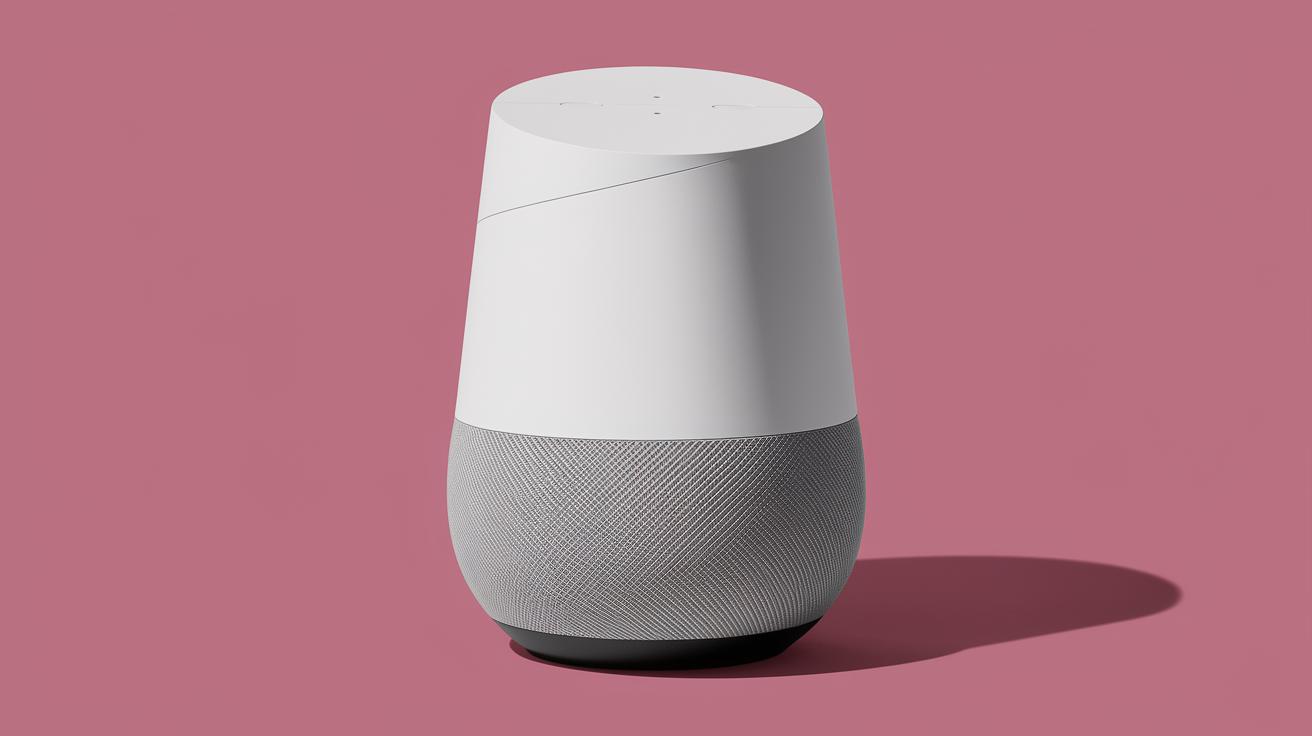
Google Home
By tapping the side of your Google Home device, you can adjust volume, pause, or play audio. While voice commands initiate radio stations, manual operation helps in precise control, especially if the Google Assistant doesn’t recognize your command instantly.
Google Nest Mini (2nd gen)
The Google Nest Mini includes touch-sensitive controls on its top surface. Play or pause a radio by tapping the center, and adjust the volume by tapping the sides. It’s an efficient alternative during voice recognition issues or simply for those times when ambient noise prevents effective voice commands.
Google Home Mini (1st gen)
Similar to the Nest Mini, the Home Mini features physical tap controls. Users can adjust music using touch controls, ensuring that playback is possible even if the voice assistance is temporarily unavailable.
Google Home Max
With its premium sound quality, Google Home Max also incorporates touch controls that are intuitive and user-friendly. You can modify volume levels and manage media playback directly, making it another viable option when tackling issues with voice commands.
Google Nest Audio
The Google Nest Audio delivers impressive sound, and touch controls on the device make accessing these functions physically straightforward. Similar controls are available to manage playback and volume, ensuring that you enjoy uninterrupted music and radio experiences.
Google Nest Wifi point
For broader connectivity, Nest Wifi points offer integrated speakers and provide hands-free assistance coupled with touch controls. By using these methods, you ensure your radio stays functional despite connectivity issues or other disruptions.
From the Google Home app
Sometimes, directly interacting with the Google Home app on your smartphone provides a faster result than verbal commands. You can control your devices through the app, selecting media you wish to play across connected speakers and radios.
The Google Home app not only connects to streaming services but also provides an interface for managing your device settings, solutions for playback issues, and access to various support resources for configuring the device appropriately.
Google Home and Nest Speakers
Google Home and Nest speakers are designed for seamless audio output. Using these devices, you can enjoy radio by saying commands directly to its microphone. The speakers are equipped to manage radio streams through various applications like TuneIn, Spotify, iHeartRadio, and many more.
While mostly straightforward, speaker performance can still be affected by factors such as network stability, geographic restrictions, and device settings. Ensure your home Wi-Fi network is stable and optimized for these devices to work correctly and regularly update software to avoid compatibility issues.
Google Nest displays
Google Nest displays add a visual dimension to the Google Home experience. With vibrant screens, they not only play audio but also provide visual mirroring of your commands, art, and notifications. If your radio command isn’t working, the interface may provide additional options for troubleshooting or allow manual intervention.
Volume button
Even with Google Nest displays, physical volume buttons offer precise control over your radio sound levels. This ensures that you can enjoy the stations without relying solely on voice commands.
Media card
The media card featured on your display provides a snapshot of ongoing playback, station details, and controls for managing your listening experience. It grants instant access to stopping, pausing, and resuming playback, enhancing the user experience when voice commands are delayed or misinterpreted.
Google Pixel Tablet (Hub Mode)
The Google Pixel Tablet in Hub Mode can function similarly to a smart display, offering controls and features to listen to radio stations across the connected Google ecosystem. Hub Mode centralizes commands intuitively, allowing for an efficient experience.
Volume button
Use the volume buttons on the Pixel Tablet to modify audio output when playing radio. This setup mirrors traditional TVs, giving users a tactile interface for controlling audio levels at leisure.
Media widget
The media widget within Hub Mode presents interface controls for controlling playback from various sources. Users can easily navigate between different stations, adjust settings, and maintain their preferred audio setups directly on the tablet interface.
Troubleshooting
If your Google Home or Nest device is unresponsive to radio commands, troubleshooting is the next step. Start by checking your network settings; ensure both the device and your phone are on the same Wi-Fi network and receiving strong signals.
Explore updating your devices to the latest firmware. Resyncing your Google account with services and unlinking and relinking your Streaming accounts can oftentimes reset malfunctioning applications. Also, consider a factory reset on stubborn devices but use this as a last resort after backing up settings.
Related articles
For further assistance, explore more articles from Google Support and community forums. Topics like optimizing smart device connectivity, enhancing voice command recognition, and additional troubleshooting topics are featured online.
These resources often include updates on features, additional voice commands, and common bug resolutions. Taking advantage of related tech forums and communities can also provide tips and fixes from other users’ experiences.
Was this helpful?
Your feedback is vital in continuing to improve user experience. If this article helped you resolve radio issues with Google Home, please let us know. Share your experiences and any additional solutions you found valuable to help us guide other readers effectively.
Summary of main points
| Section | Key Points |
|---|---|
| Use your voice to listen to radio | Use voice commands; ensure services are linked; check regional availability. |
| Other ways to control radio | Use device touch controls and app commands for better management. |
| Google Home and Nest Speakers | Ensure seamless integration across platforms like TuneIn and Spotify. |
| Google Nest displays | Visual and manual controls for enhanced management experience. |
| Google Pixel Tablet (Hub Mode) | Leverage Hub Mode for centralized and efficient command execution. |
| Troubleshooting | Check network, update firmware, and consider factory reset. |
| Related articles | Explore additional resources for comprehensive issue resolution. |
| Was this helpful? | Feedback requested to enhance future content. |