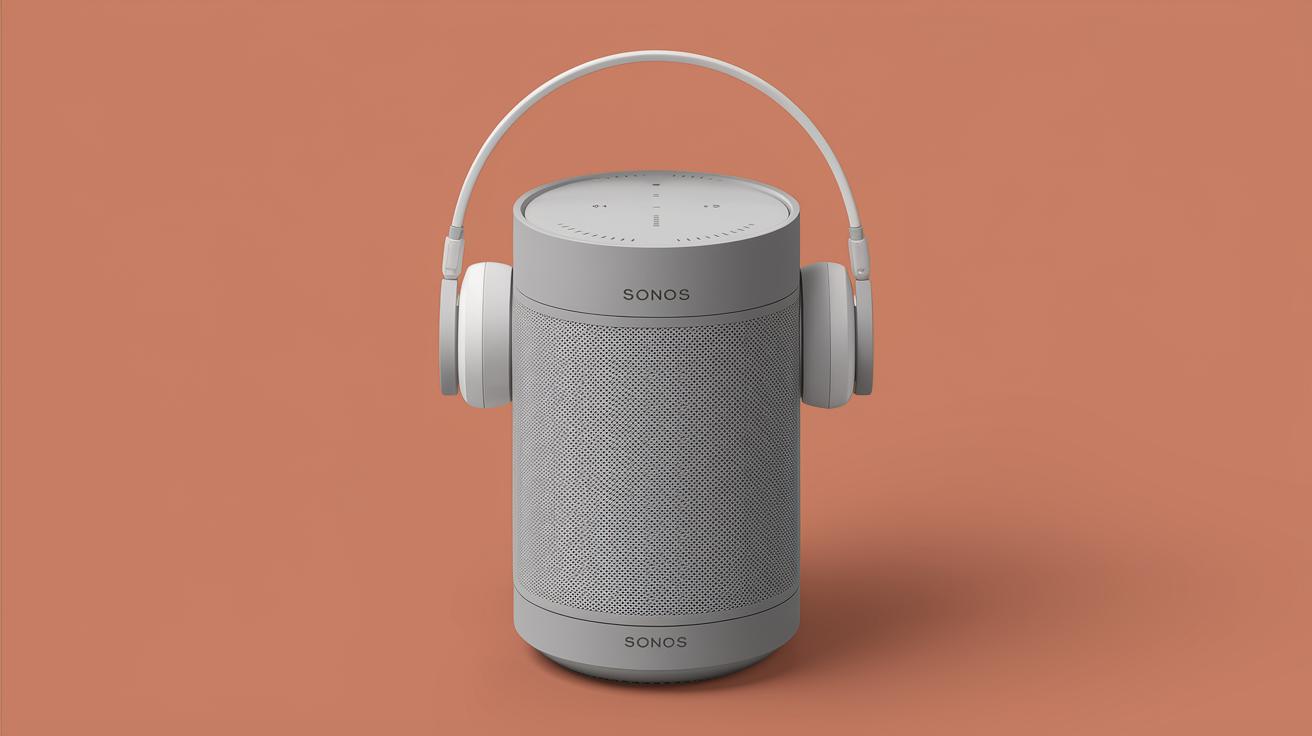
Playing Radio on Sonos: A Comprehensive Guide
Sonos, the wireless speaker system that provides high-quality sound throughout your home, also offers the enjoyable feature of streaming radio. Whether you prefer local radio stations or worldwide broadcasts, playing radio on Sonos unlocks a universe of auditory experiences. This blog post will walk you through the process of adding radio stations to your Sonos system using TuneIn and playing your custom stations using the Sonos app. Whether you’re a tech newbie or a seasoned Sonos user, follow these steps to enhance your listening experience.
Add the station URL to your TuneIn favorites
Sonos app
To begin adding a radio station to your TuneIn favorites, open the Sonos app on your mobile device or computer. Navigate to the ‘Browse’ section where you will find the TuneIn Radio service. Simply enter the search function within TuneIn and look for your desired radio station or use the ‘Manual URL’ entry if you know the specific URL of the stream. It’s imperative to ensure that the radio station link is compatible with Sonos for seamless listening.
Once you have located the radio station, add it to your collection by clicking the ‘Add to Favorites’ option. This feature allows you to quickly access your most-loved stations without having to search repeatedly. Your collection of favorite stations can be found under the ‘My Sonos’ tab where you can organize your list and prioritize stations based on your preferences, creating an easy, customized listening experience.
Sonos S1 Controller app
For users utilizing the Sonos S1 Controller app, a similar process can be followed to add radio stations to your favorites. First, ensure your app is up-to-date for optimal functionality. Open the app and go to the ‘Browse’ tab. Here, you will find options like TuneIn Radio and other streaming services. Navigate specifically to TuneIn Radio to commence your station search.
Use the search bar or the ‘My Radio Stations’ feature to input the URL of the radio station you’re interested in. After locating the station, choose the ‘Save to My Radio Stations’ option to save it to your favorites. This method effectively organizes your preferred stations under the ‘My Sonos’ section, making it convenient to play your chosen stations with minimal navigation, enhancing ease of use even further.
Use the Sonos app to play your custom station
Once you’ve curated a list of your favorite radio stations, playing them using the Sonos app is straightforward. Open the Sonos app and head to the ‘My Sonos’ tab. This tab displays your saved music, including playlists, albums, and importantly, your collection of favorite radio stations. To play a station, simply click on it, and your Sonos system will start streaming the live broadcast instantly.
For a custom listening experience, you can adjust various settings within the app, such as volume or equalizer options, to tailor the sound output to your preference. Users with multiple Sonos speakers can even choose specific speakers or groups for playing different stations simultaneously in various room configurations. This flexibility ensures that your home is filled with the sounds you love, precisely where you want them.
For further customization, explore the ‘Edit’ option in the ‘My Sonos’ tab, which allows you to rename stations or reorder them based on frequency of use or personal preference. This level of customization reinforces the intuitive nature of the Sonos system, ensuring your radio experience is as personalized and accessible as possible.
In case you encounter any trouble connecting to a radio station, ensure your internet connection is stable and the radio station URL is correct. For any further technical assistance, the Sonos support site offers a plethora of resources, including community forums, step-by-step tutorials, and live customer support.
Next Steps
| Step | Description |
|---|---|
| Add Station URL via Sonos App | Open the Sonos app, navigate to TuneIn Radio within ‘Browse’, and add the station URL to your favorites. |
| Add Station URL via Sonos S1 Controller | Use the Sonos S1 app, search for your radio using TuneIn and save the station to ‘My Radio Stations’. |
| Play Your Custom Station | Access your favorite stations via ‘My Sonos’, and start streaming instantly to your chosen speaker setup. |
This HTML content provides a step-by-step guide on how to play radio stations on Sonos using the integrated TuneIn service, showcasing functionality within both Sonos app versions.